Connect Hubspot for orders
Traide's integration with Hubspot improves how you handle your relationship with your buyers. With this integration, you have a number of use cases to explore - from monitoring buyer orders to tracking how efficient your marketing is.
In this guide, you will learn how to integrate your Hubspot account to your Traide store and monitor customer orders in real-time.
Requirements
Before integrating Hubspot, you will need the following:
- A Traide account. Traide is a marketplace commerce platform that enables businesses to build and scale online marketplaces.
- A Hubspot account. Hubspot is a contact relationship management tool.
- An operational marketplace or store with Traide. You can learn how to set this up through the Traide Operator guide.
Configuring Hubspot in the dashboard
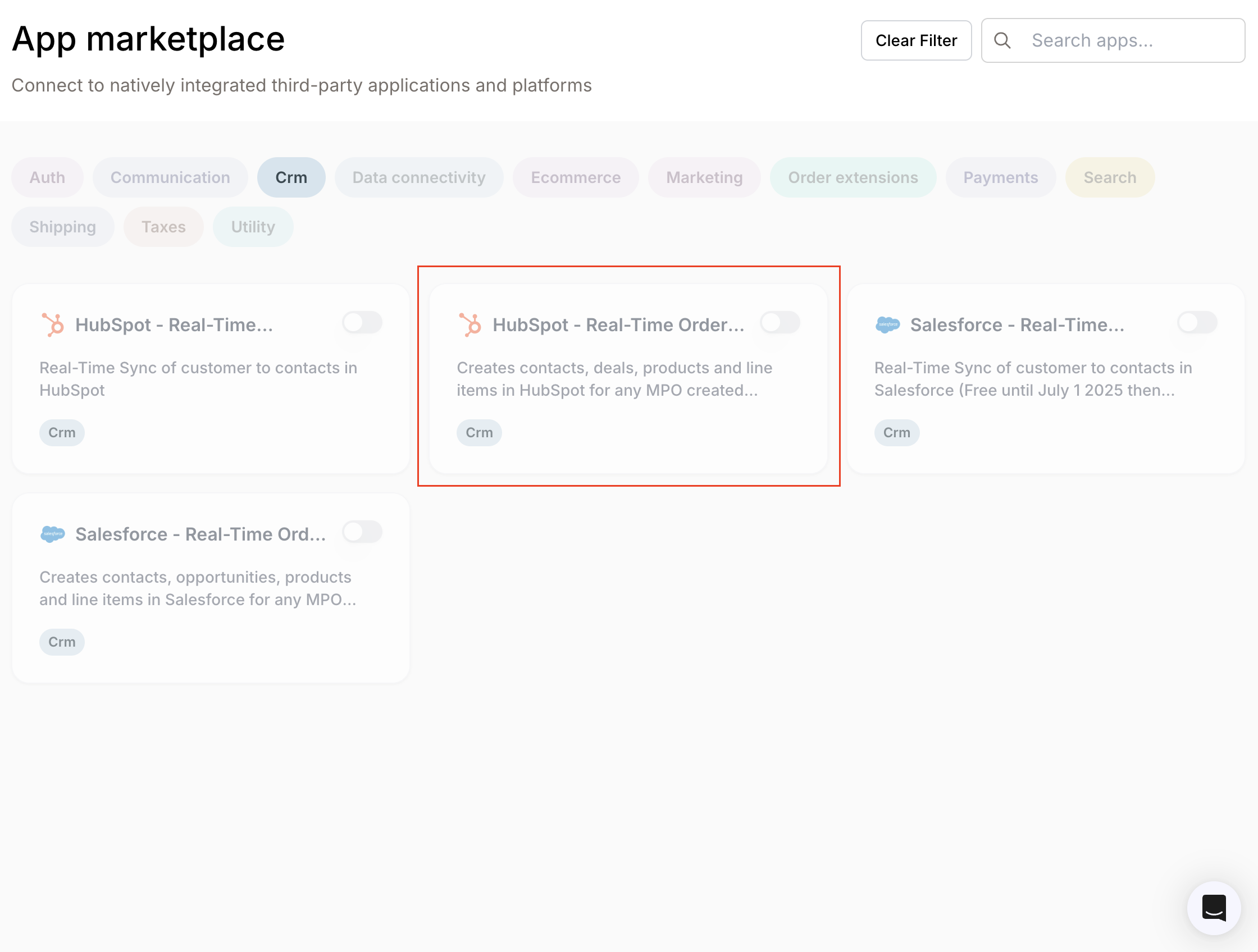
Hubspot appears as a third-party application in your marketplace. You can view it by navigating to Settings -> Apps -> App marketplace in the dashboard. The image below shows some third-party apps in your marketplace, with the Hubspot app highlighted:
The core setup of natively integrating third-party apps so they can appear in your marketplace is done by your Traide representative.
At this point, the Hubspot third-party app is not active. Once Hubspot has been integrated to your marketplace, you can activate it by sharing the following details:
- Your Hubspot access token. You can learn more about this here.
- Your Traide tenant type. This is the environment you’re building for, values can either be Staging or Production.
info
Every storefront URL in Traide has the following default cadence:
Staging: <tenantid>.mpconsole.dev
Production: <tenantid>.mynauticalstore.com - Your Traide tenant ID. This is your store’s name, you can also confirm this from your marketplace’s dashboard URL - https://[tenantid].mpconsole.com.
- Your bearer token. This is an API token generated as part of integrating an app into your marketplace. You can create one in the dashboard by navigating to Settings -> Apps -> Custom Apps.
The video below shows how you can generate a bearer token when integrating an app:
The bearer token displayed here is only for information purposes. You should always keep your tokens private.
Once you generate your bearer token, navigate to Settings -> Apps -> App marketplace in the dashboard and input the details you need to activate your Hubspot third-party app. The image below shows the Hubspot app configuration in the dashboard:
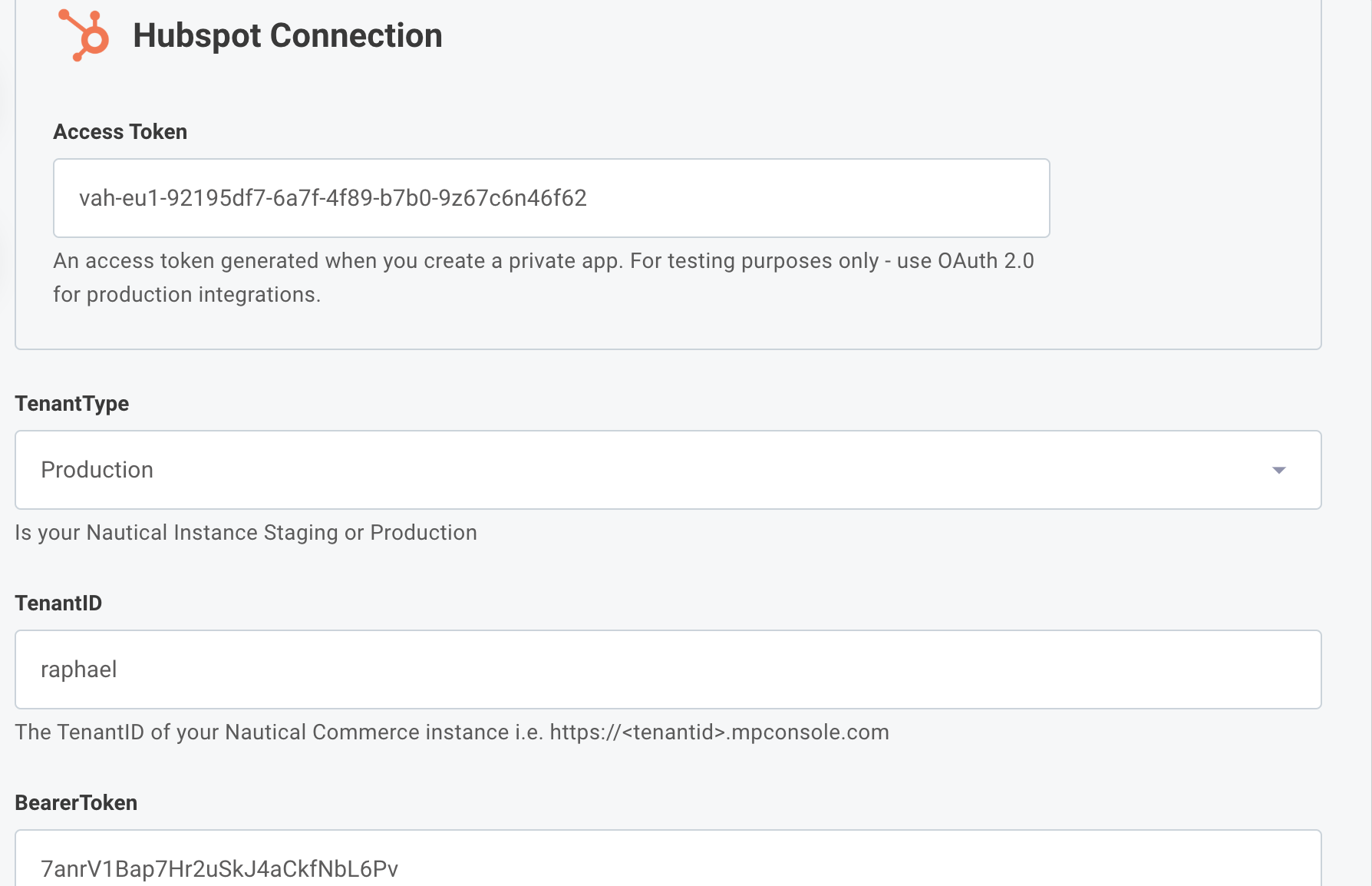
The access and bearer tokens displayed here are only for the purpose of this guide. You must always keep your tokens private.
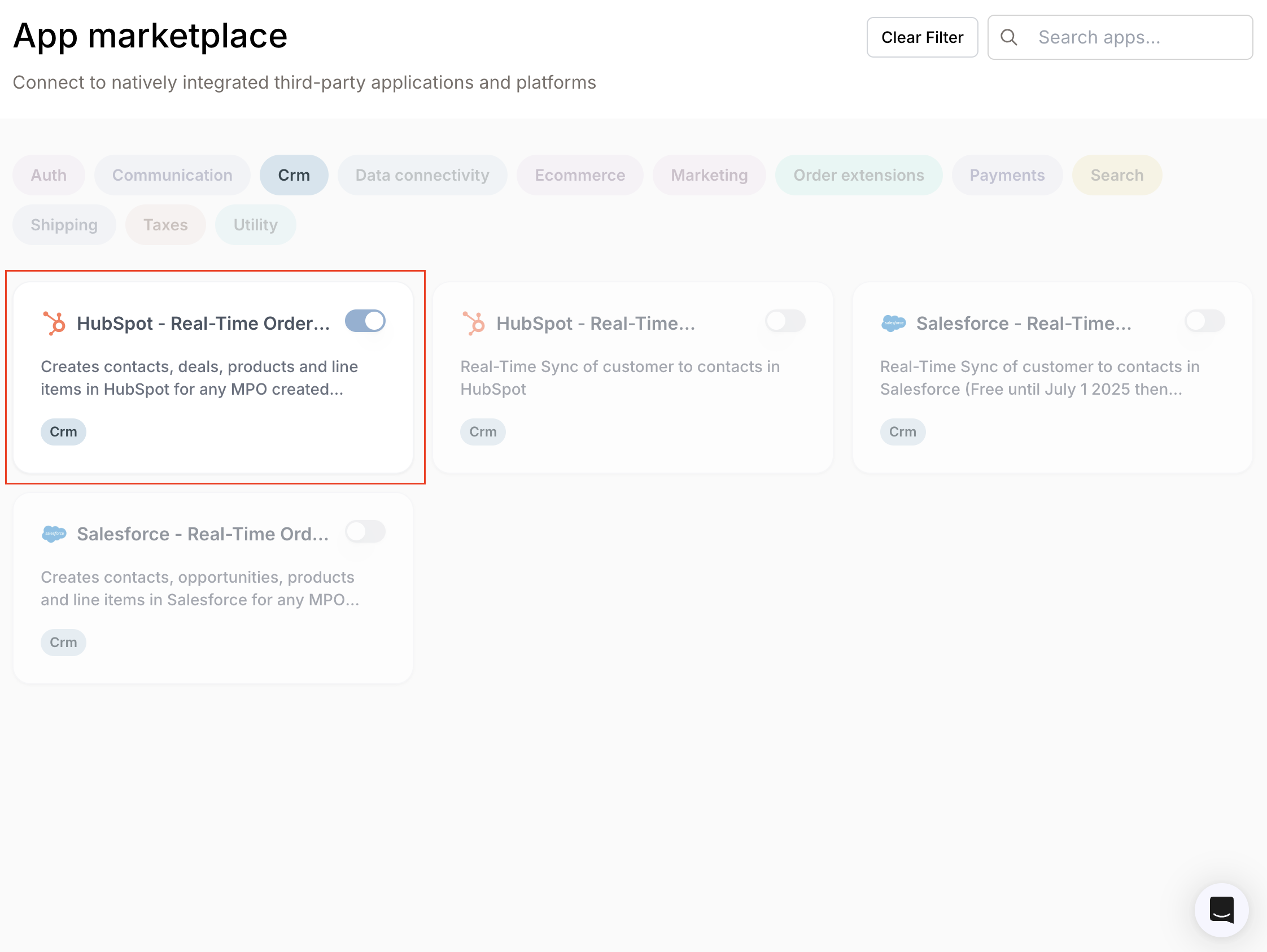
Once you are done with the configuration, the Hubspot third-party app will be active in the dashboard as shown in the following image:
Tracking Orders
When you're done integrating Hubspot, the next step is to have customer orders placed in your storefront appear in your Hubspot account. You can do this by creating a private app in Hubspot.
Private apps let you access specific data via API calls in your Hubspot account, you can learn more about them here.
Configuring your private app to receive real-time data from your store is done by your Traide representative.
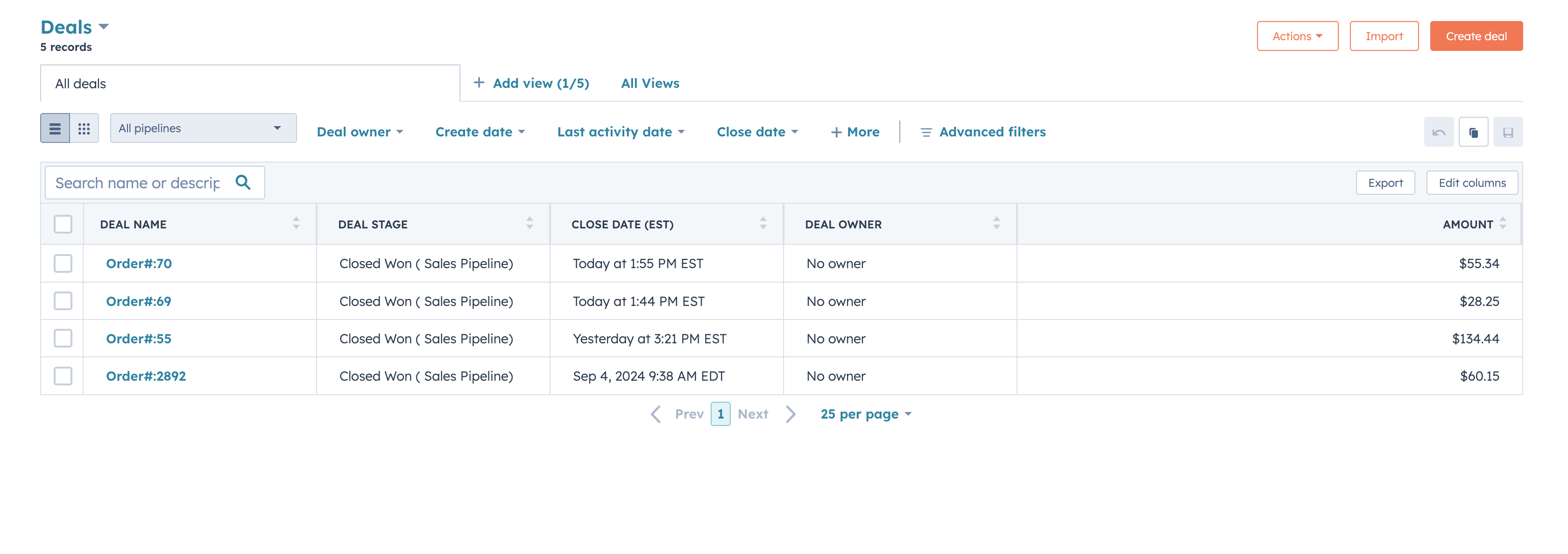
To view your store orders, navigate to CRM -> Deals in your Hubspot account. The image below shows how orders appear on Hubspot:
When customers place orders in your store, their data is sent to your Hubspot account. The video below shows the process of a customer signing in and placing an order with a store:
Once the order is placed, its details will reflect in your Hubspot dashboard as shown in the video below:
Summary
Hubspot is utilized for trackable lead generation and marketing. Having this tool in your marketplace will help you to maximize customer decisions when they visit your store. Should you have any questions, you can reach out via support@thetraide.com.